Main Nav

Showing posts with label Illustrator brush. Show all posts

Jul 18, 2012

Create Custom Brushes for illustrator and Photoshop


Creating custom brushes for Illustrator and Photoshop

Using Photoshop and Illustrator for graphic designing is extremely common now, but the professional experience differ highly. The work done in Photoshop and illustrator by a professional and amateur can easily be differentiated. Why? Because an amateur uses advance tools and options that an Amateur may not even know about. Professional graphic designer use custom tools that both Photoshop and Illustrator support. Of course building these tools is fairly easy but a lot of people find it difficult to do so. Those people are not real professionals, Nevertheless even professionals seek help from time to time, especially with newer versions of the software.

One of the best work you can do in Photoshop is when you use customer brushes. Custom brushes allow you to enhance the editing in your picture that can really make difference. For starters you can give touches on the picture that make it look authentic and unedited. Some experts use it to watermark their images so that even if stolen, no one can deny that it is truly not their own.

Starting with custom brushes


To create a custom brush you first need a texture image. You can get these texture images easily by searching them on Google. It is highly advised not to use images that already belong to someone else. For the sake of a fellow designer, I advise you to use images that are out there for sample purposes or is distributed free of cost. Open the image on Photoshop and DE-saturate the image. In Photoshop7 you can do this by (SHIFT+CTRL+U). What you get will be present in a background layer. Copy this layer and paste it so that it become layer1 and now delete the Background Layer. We do this because it is easier to edit Layer1 and Background layers are not always editable. Now edit this layer to your liking. Use the brightness settings, changing the levels, playing with the contrast and saturation etc.

The easy Part

You’ve created the brush but Photoshop sees it as an image. So now you have to create the image as a brush. To do this go to “edit” and then click “Define Brush”. A window will appear asking you to name and save the brush. Name it and click “Done”. That’s it you have created your new brush. You will need to save it in order to use it. You can use the same brush on other similar applications like illustrator. Once you’ve made many different brushes you need to do one more thing. In the “Edit” option find Preset Manager. The window will show you all the brushes available on your computer. Click on the ones you want and then click on save option.

If you want to load a brush from your back files simply go to “window” select Pallets and then show brushes. Find the brush on your back up drive and load it. You will get the brush now displayed on your application.

Author Bio- The author is an expert in online marketing financial solutions. He has experience in giving advice on increasing productivity and money saving schemes for online businesses. He also has experience in providing online "You can do this by using the following basic HTML code in the article:
credit card solutions solutions for ecommerce businesses

Read More →

Jun 2, 2012

Brushes for Adobe Illustrator (oil and watercolor)

Brushes for vector graphics editors are not as popular as the appropriate brushes for bitmap graphics editors. This is not because they are useless, just Adobe Photoshop installed in every second, and vector graphics editor is basically just the professionals. But, for those who have an idea of ​​what Adobe Illustrator and what it eats, they need nothing less than a brush for Photoshop. Because with a good brush can literally work wonders.

Today I decided to make a selection of brushes for Illustrator, simulating real brush - watercolor, oil, ink (this is not a brush but still) and so on. Such materials are useful for different works in the artistic style and look all the brushes for Illustrator is very high quality, variety of them large enough so that all, I think, sets handy. Download the brush, as always, is free.

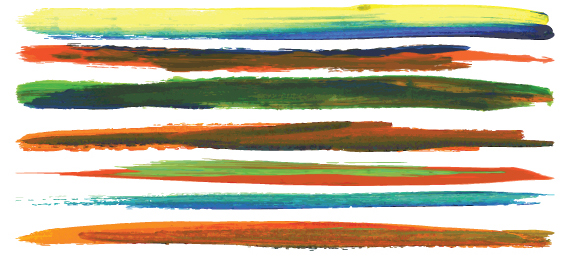
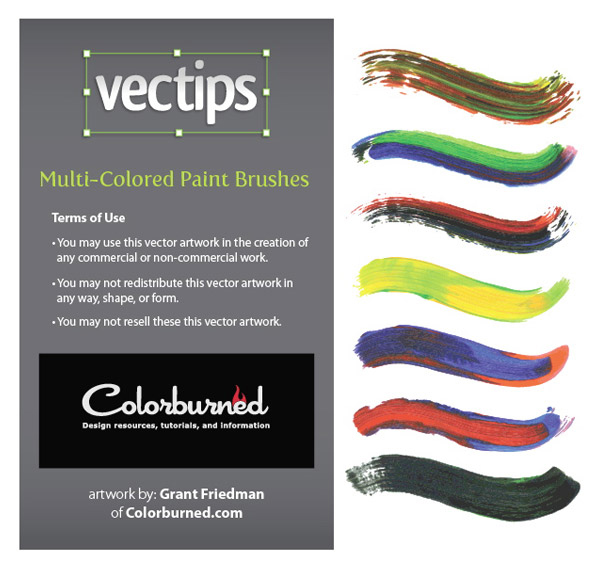
Multi-Colored Paint Brushes

Brushes for Adobe Illustrator

Download ( mirror ) ~ 44Mb / / Source

Multi-Colored Paint Brushes - a collection that includes 57 multi-colored tassels. A very interesting set. On the source page of the site will also find a small manual on how these (and other) brushes for Illustrator can be connected.

Watercolor Brushes

Download the brush watercolor

Download ( mirror ) ~ 2.6 Mb / / Source

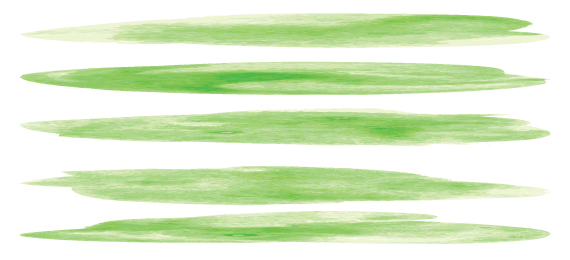
Watercolor Brushes Set contains more than 100 watercolor brushes, which were created by using different techniques and can be used to solve many problems. We can say universal brush.

Paint Brushes

download free hand

Download ( mirror ), ~ 22 Mb / / Source

Paint Brushes - 15 high quality brushes simulate various strokes of this brush. The archive options for Illustrator CS and Illustrator CS3. The set was very useful and versatile.

Delicious Watercolor Brushes

brushes for Adobe Illustrator

Download ( mirror ), ~ 15 Mb / / Source

Delicious Watercolor Brushes - a great package, which includes 106 of watercolor brushes. The total file size - 14.6 mb. Compatibility - Illustrator CS and above. Ideal for creating illustrations in the style as if they were really painted by hand, for example, children's pictures.

Ink and Watercolor Brushes

Download Illustrator Brushes

Download ( mirror ) / / Source

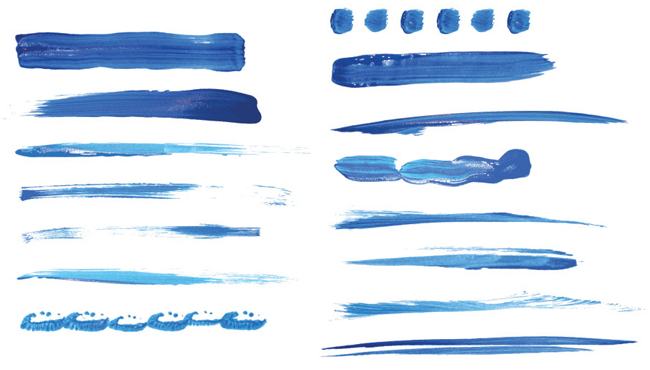
Ink and Watercolor Brushes - you will find a set of 13 brushes. In the source there are two versions - one for Illustrator CS, the other for Illustrator CS3 (the link for download is version CS3). If you are using a later version of the editor, the latter must be compatible.

Water Color Blob Brushes (for Photoshop and Illustrator)

Free Illustrator Brushes

Download ( mirror ), ~ 22 Mb / / Source

Water Color Blob Brushes - these collections are interesting in that there are two versions - for "Photoshop" and "illustrator". The set includes 17 brushes. If you need these brushes for Photoshop, installation guide you will find the link source, and I, meanwhile, just in case, I will tell (and most knowledgeable people remind you) how to install these brushes in Illustrator.

It's very simple to the directory where you installed Adobe Illustrator folder, find the Presets, Brushes folder in it which will extract and one set (or sets) that you downloaded. After restarting, Adobe Illustrator, the set will appear in the Brush Libraries. Use your health!

Read More →